THE LISTING LENS WALKTHROUGH
Show a life.
Then tell the investment story.
A simple phone-first presentation for buyers and sellers. Start with a reviewed waterfront listing when you want to demonstrate Water Lens.
Pictures below are simplified button guides. Available features depend on the property. Use the labels shown in your current listing.
STEP 1
Start with their home
Open the listing from My listings. Show the agent photo and name at the top. Tap Property details to show the home, photos, price and facts.
TRY SAYINGThis is your listing, with your branding. Your client can explore it on their own phone.
Before presenting, confirm the correct property and agent appear. Photos and features depend on the saved listing.
Save step image ↓
STEP 2
Lead with Water Lens
Tap Living here, then Explore by water. Choose a destination and tap View water route. Use Follow route to travel along it. Minimize the panel to see more of the map.
TRY SAYINGImagine leaving home by boat and heading out to dinner. Here is how the waterfront lifestyle connects.
For inland homes, start with a supported public launch. Show only available routes. These are planning estimates, not navigation instructions; confirm dock access and conditions.
Save step image ↓
STEP 3
Show everyday life
Return to the property, then tap Explore nearby or Lifestyle Lens. Choose a saved place or search for something the buyer cares about. Open its route or details.
TRY SAYINGWhat would make an ordinary Saturday feel right here: coffee, a park, or a place for the kids?
Start with one buyer interest. Avoid opening every category at once. Search and route availability vary.
Save step image ↓
STEP 4
Make the future personal
Tap Investing here, then Developments. Open a project card, look at the photos, and check its status and source. For a hockey family, search for the IcePlex when available.
TRY SAYINGYour child plays hockey? Let us look at this ice complex and see what is actually planned or already open.
Do not call a project upcoming unless its current record supports that. Separate proposed, under construction and completed projects.
Save step image ↓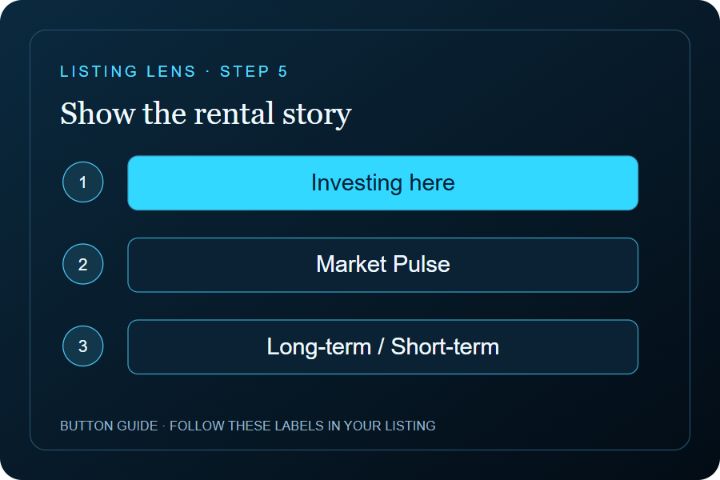
STEP 5
Show the rental story
Tap Market Pulse. Compare Long-term and Short-term. For short-term, choose Guest capacity, then Load short-term comparisons. Explain the range and any agent assumptions.
TRY SAYINGHere is the rental context, and here are the assumptions we would want to verify for this specific home.
Gross rent is not profit. Occupancy, expenses and rental rules matter. Missing data is not a zero-dollar income estimate. Land and commercial listings use different analysis.
Save step image ↓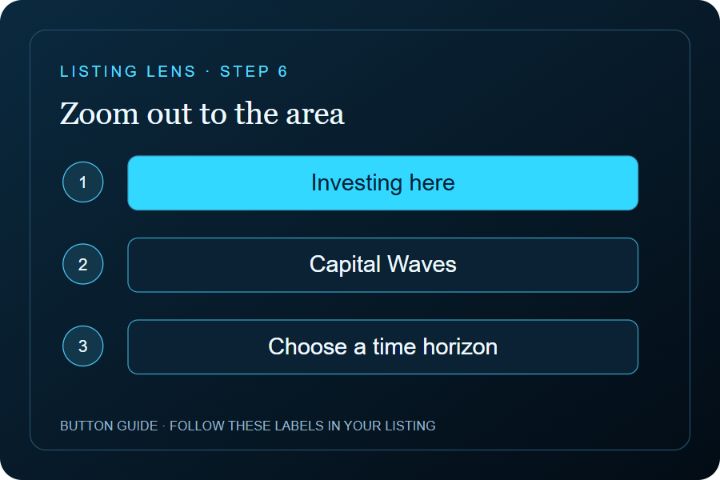
STEP 6
Zoom out to the area
Tap Capital Waves. Move between the available time horizons and inspect the source-backed records. Use Growth Drivers for the plain-language story around the property.
TRY SAYINGThe house is one part of the decision. This shows the public investment and development context around it.
Planned spending is not committed funding or a promise of appreciation. Use the dates, status and sources shown.
Save step image ↓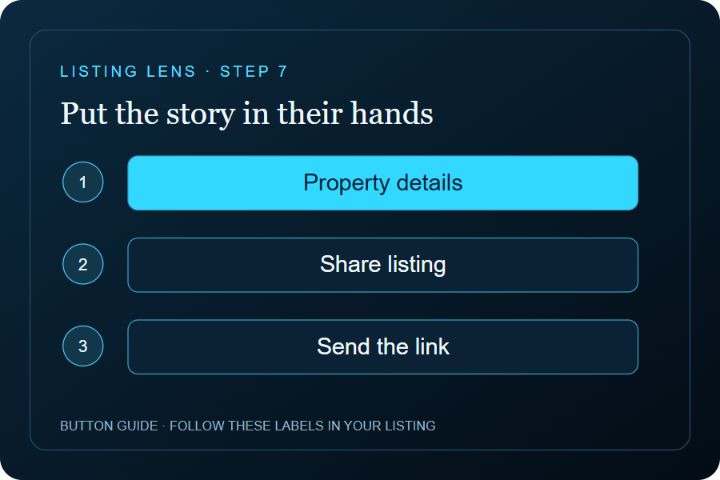
STEP 7
Put the story in their hands
Use Share listing in the property view, or Copy link in your workspace. On a phone, use the system sharing menu. The QR kit is available in the existing preview-and-send workflow.
TRY SAYINGI will send this so you can revisit the places and projects that matter to you.
Check the client preview before sharing. Links have no automatic expiration. Never share the agent editing page.
Save step image ↓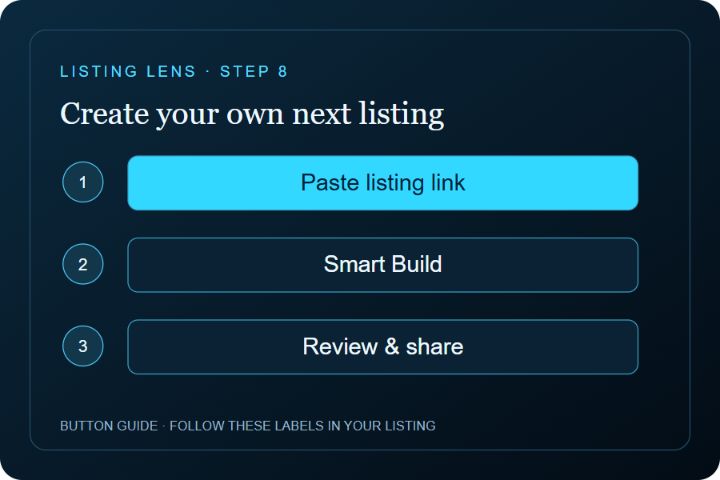
STEP 8
Create your own next listing
From the homepage, paste a listing URL and choose Create Listing Lens. Sign in if needed, then select Smart Build in the editor. Review the imported facts, photos and location. Complete Smart Build and preview before creating a client link.
TRY SAYINGA listing becomes a branded experience you can review, customize and share.
If the source cannot import, enter the details manually. Confirm photos, location, access, agent branding and any rental assumptions before sharing.
Save step image ↓AT A LISTING APPOINTMENT
Make your marketing tangible.
“Here is how I would present your home: your photos, the lifestyle around it, and the area story, all in a branded experience a buyer can explore on their phone.”
“Have you seen another presentation that helps a buyer explore your property this way?”
Show the experience and invite their response. Let the seller decide what makes it different.
Now, take them to the bigger picture.
Move to Investor Eye on the laptop for deeper area and property tools. Keep the same property or neighborhood as the thread of your story.